Reducing the number of nodes in tri-meshes
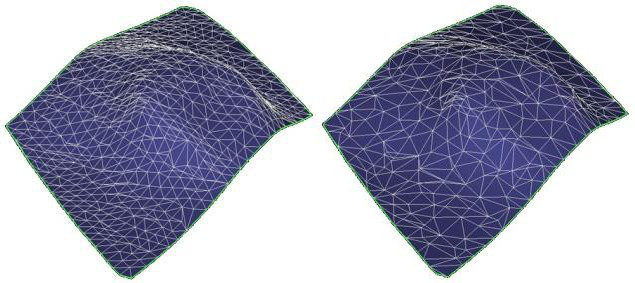
Before and after reducing nodes click to enlarge
Use the Reduce Nodes form (prepare > Post-Processing Tools > Tri-mesh Tools > Smoothing > Reduce Nodes ) to lower the number of nodes in the tri-mesh by removing the nodes closest to the tri-mesh first. For every node, a plane is defined through all its neighboring nodes. The distance from the node to this plane is compared with the threshold value. All nodes too close to this plane will be removed.
The Node-plane distance specifies the maximum node-plane distance to be used for removing superfluous nodes.
Other smoothing options, including refining and smoothing surfaces, are also available.
If the chosen threshold value is too large, all of the nodes on the target tri-mesh may not be removed in a single iteration .
- At the top of the form, select a source from the 'Source' drop-down list. This selection populates the table below with all available tri-meshes.
- Select the tri-meshes on which you want to reduce nodes.
- For the Node-plane distance, specify a maximum to use for removing unnecessary nodes. All nodes closer to the plane than this will be removed.
- To keep associated nodes at surface intersections locked when reducing nodes, check Keep watertight connections.
- Click OK or Apply.